Technology Services is moving the university’s multifactor authentication from Duo to Microsoft Authenticator. Starting Oct. 19, users will begin to see a prompt to access (shown below) the new secure sign-in portal by Microsoft Authenticator. Everyone will need to change their MFA app from Duo to Authenticator when the prompt appears on their device. Users will be phased in over time starting in October, with all users required to change MFA apps by the middle of the spring semester.
What should I expect?
When your turn in the queue arrives, you will see a prompt to begin the Microsoft MFA migration:
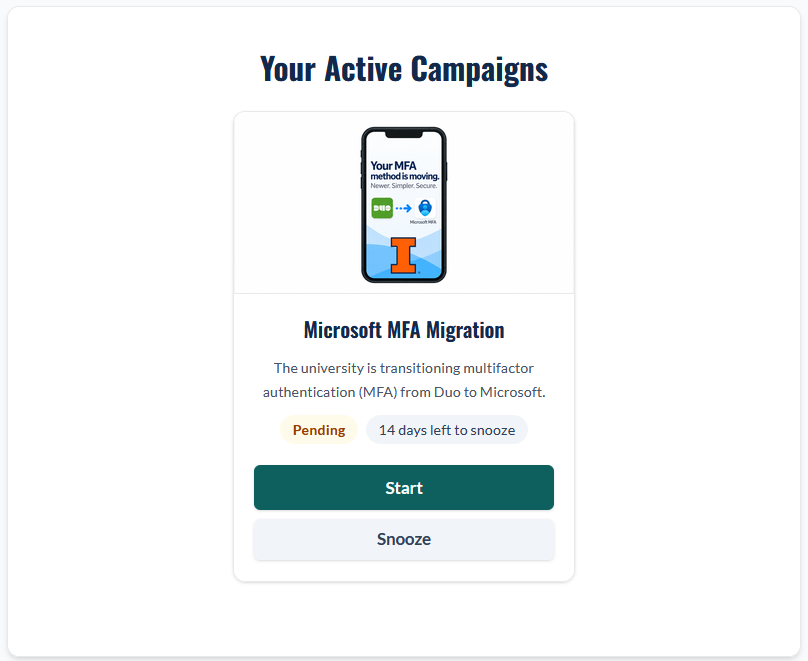
When you receive this prompt, you will have 14 days to complete the move. You can choose to “snooze” to postpone setup each time you authenticate during the fourteen-day period. After the fourteen days, you’ll be required to complete Microsoft MFA enrollment before you can access university services.
Due to the gradual nature of the transition, there is no way to anticipate when the prompt will appear for you.
You can proactively change to Microsoft Authenticator starting now if you want to do it on your own time. Visit the Microsoft Security Info Page to kick-off the Duo to Microsoft Authenticator transition.
How to set up Microsoft Authenticator
Follow the step-by-step guide to enrolling in Microsoft Authenticator in our Answers KnowledgeBase.
FAQ
Why is the university replacing Duo?
Microsoft Authenticator is part of the Microsoft 365 suite the university already uses, and it aligns with our multiyear effort to making signing in to university services simpler and more secure. It will expand our ability to allow users to use passkeys, which is a passwordless sign-in option. Passkeys are designed to be more resistant to phishing attempts. This transition will give the university more options to strengthen account protection while simplifying the sign-in experience.
What other methods can I use instead of Microsoft Authenticator?
Passkeys or Yubikeys are also supported.
Why do I need two methods?
A second method is your backup. If you lose your phone, get a new one, or forget your device, you can still sign in. Using two methods is also a best practice recommended by the Cybersecurity and Infrastructure Security Agency and Microsoft.
Where can I get help?
Contact the IT Service Desk for assistance.
Add a second authentication method
Besides having Microsoft Authenticator, it is recommended to have a second method of multifactor authentication. This backup method keeps you from getting locked out if your first method fails, such as if you lose or replace your phone. It’s also a best practice to have two methods, according to the Cybersecurity and Infrastructure Security Agency and Microsoft.
We recommend a passkey or Yubikey security key as a second method. Setting up a second authentication method now is the most reliable way to stay signed in. If you are ever unable to access your primary method, the second one will already be in place.