Virtual Private Network (VPN)
Access campus resources from anywhere
A virtual private network, or VPN, is software that runs on your computer that encrypts the network traffic between your device and the campus network.
Some university resources are only available to users that are either on campus or connected to the VPN. If you have problems accessing a particular resource or service, try connecting to the VPN to see if that resolves the issue.
Get a VPN
Download and install the VPN software from the WebStore.
Read self-help guide
Read this Answers KnowledgeBase article to learn how to setup and use this service.
Service information
Details about Remote Network Access is in the Enterprise IT Service Catalog.
VPN login
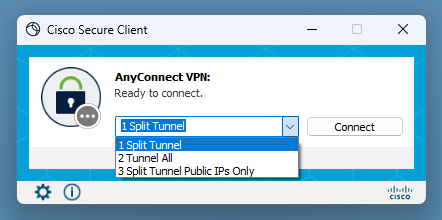
After you’ve downloaded and installed the VPN software, select a profile from the drop-down list. For most purposes, the default Split Tunnel profile is the optimal choice, but some resources my require the Tunnel All profile.
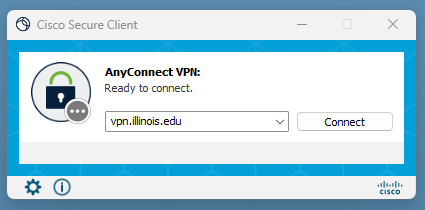
If you do not see a list of pre-populated profiles in the drop-down list, simply type vpn.illinois.edu into the text box and click Connect.
VPN is not required
Teaching and learning
- Canvas @ Illinois
- Moodle
- Media Space
Voice and video
- Microsoft Teams
- Zoom
Email and cloud storage
- Outlook online
- University Gmail
- ListServ Manager (lists.illinois.edu)
- U of I Box
- Google Drive/Google Apps @ Illinois
- OneDrive
- SharePoint Online
- Office 365
VPN may be required
Remotely connecting to control campus computer and services
- Connect to Apple computers/servers: Apple remote desktop
- Connect to windows computers/servers:
- Microsoft remote desktop for Apple computers – if you’re not using the rdpgateway.illinois.edu server
- Remote access using Citrix
Remotely connecting to private campus resources
- SSH
- Connect to host name ending in ad.uillinois.edu
- Connect to private IT space
- Access websites or servers designed to be accessed from the campus network only
- Map remote drives
Remotely connecting to resources with special security requirements
- Access campus resource requiring NIST-compliance (use “Tunnel All” for this)
System administration resources
- Access Chrome River
- Access Banner
- Access EDDIE
Restricted services
- Access Library Materials that don’t require login (use “Tunnel All” for this.)
- Additional details available from this Library Support page
- Activate or Reactivate a Windows License (use “Tunnel All” for this)